Choosing Aiarty Image Matting: Which photos should not share the same cutout settings?
For e-commerce image editors, subject selection and sheer-fabric transparency are two tests of whether Aiarty Image Matting is worth adopting. Decide whether to reuse batch settings only after testing transparent-file handoff and accounting for rework across the batch.
The same fabric hanging has been photographed from the front, from the side, and in close-up. The fringe, openings, and layers of gauze along the edges need to survive. Aiarty Image Matting is a candidate for creating the initial mask, but one clean angle does not justify applying the same settings to the whole batch. This is Aiarty’s cutout product, not its image or video enhancement software. For an e-commerce editor, the reason to buy is that typical photos yield transparent assets quickly enough to hand off, and difficult shots can be routed separately. Getting the subject in a single preview is not enough.
The vendor distinguishes Area Selection from Mask Alpha Curve. The former helps decide what belongs in the mask; the latter adjusts how transparency varies. Fix the selection first if it includes the wrong subject. If the subject is right but translucent gauze has a hard edge, adjust transparency instead. If every photo requires a new selection and extensive touch-ups, making masks manually in the editor you already use preserves familiar layers and handoff practices without adding the cost of switching software.
Use different controls for two different problems
Test with three shots you took yourself: fine fringe in the front view, a piece of same-color fabric next to the product in the side view, and folded gauze overlapping in the close-up. This is an evaluation scenario, not a product test. On each shot, mark the threads that must remain, the openings that must stay clear, and the parts that should still be translucent. If the side view includes the unrelated cloth, change the selected area. If the gauze in the close-up is cut out as a solid patch, compare its transitions before and after adjusting transparency. Do not lose detail in all three images just to exclude that one piece of cloth.
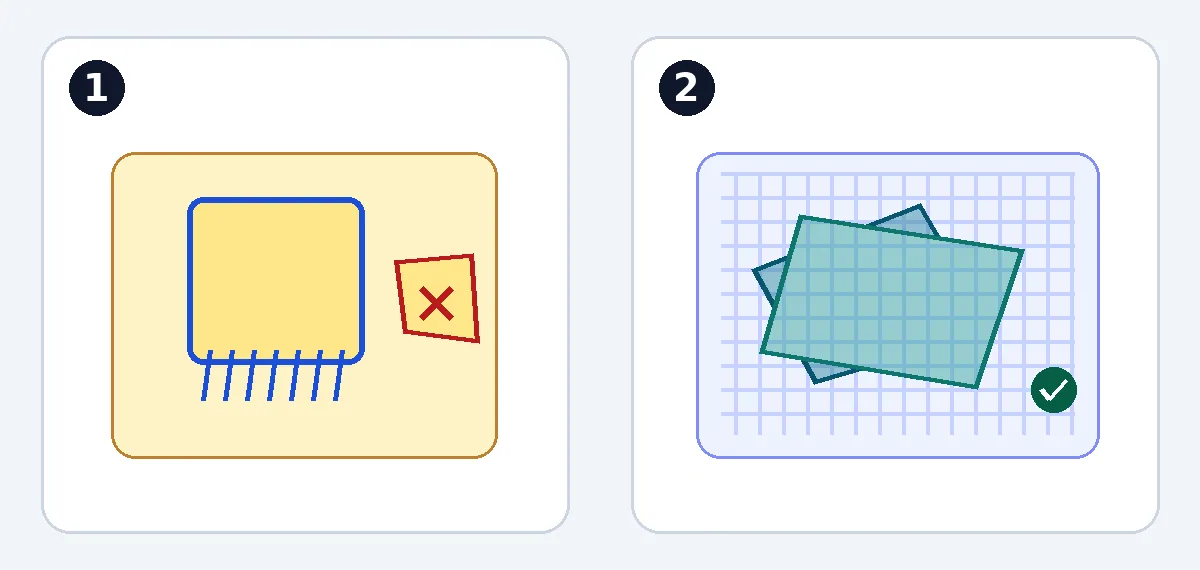
Original conceptual illustration, not the Aiarty interface, product output, or test photos. 1: The blue outline and fringe show the subject to retain. The red cross marks unrelated cloth to exclude; correct the selection first. 2: The grid should remain visible through the overlapping gauze. The gauze should not become a solid block. Check transparency; the grid is only an illustrative background.
The official guide describes Apply to Batch Export, which uses the current settings for a batch export. It reuses settings; it does not paste one photo’s pixel mask unchanged over every angle. The three samples screen the tool, but do not replace inspecting each image in the batch. Group only photos that pass the same criteria. Handle exceptions such as fabric that merges with the subject in a side view and overlapping gauze separately. If you ignore the other angles after just one sample passes, batching merely delays discovery of the same problems.
Assess the value of batching after export
The guide distinguishes RGBA images, masks, and output with a background effect applied. RGBA carries transparency information. A mask describes which parts are kept and to what degree. Neither is the same as a product image already composited onto a background color. Hand a file that retains its alpha channel to your layout software, rather than checking only the Aiarty preview. Place the same export over light and dark backgrounds and the intended layout color. Zoom in to check for broken threads or blocked openings, then look for white or colored fringes at the actual product-card size.
If the publishing channel only needs a finished, opaque image, export a separate delivery version with a fixed background and retain the transparent master and matching original. Do not hand off a JPG without an alpha channel as though it had a replaceable background. The next editor should be able to tell which original matches which transparent output and mask without guessing from thumbnails. If you have only the composited image and changing the background requires starting over, the first export does not count as finished delivery.
For each of the three samples, record time spent on automatic processing, manual edge cleanup, re-export, and review. Then compare the same batch with your existing editor, including checks at final size and on changed backgrounds for both workflows. Sorting images into groups, falling back on a manual workflow for difficult shots, and organizing files also cost time. Estimate the value of actual net time saved per batch and the number of batches you expect. Compare it with an Image Matting license quote for the platforms, device count, and update period you need. Do not focus only on single-run inference speed or assume the license for another Aiarty product covers cutouts.
Before buying, check processing speed, what files you can actually export, and access to batch processing on the computers you plan to use. A downloadable trial does not grant production rights by itself. If the workflow saves no effort once you count sorting, edge cleanup, review, and handoff, or its savings cannot cover licensing and switching costs, do not buy it separately. Adopt it when most similar images pass with the same settings, exceptions can be routed separately, and the next editor can take over the transparent files.
Content note:This article is based on publicly available information and is intended as a reference for evaluating tools. Features, pricing, and related policies may change at any time; please refer to the latest official information.
Original source:web.archive.org