Choosing AirBuddy 3: Transfer the keyboard and mouse connection or control another screen?
Before sharing Magic peripherals between two Macs, distinguish AirBuddy 3’s connection transfer from Universal Control’s cross-screen operation. Check the peripherals, versions on both Macs, licensing, and recovery after an interruption before paying.
AirBuddy 3’s Magic Handoff gives you a clear reason to buy when you want to alternate a Magic Keyboard and Magic Trackpad between two Macs you are authorized to use. It transfers compatible peripherals to the other Mac. If you just want the pointer to move between two screens that are on at the same time, first see whether macOS Universal Control meets that need. The workflows change different connection relationships; saying they both share input devices is not enough to choose between them.
AirBuddy 3 manages devices and connections on a Mac. Alongside its battery and headset features, the vendor explicitly lists Magic Mouse, Magic Keyboard, and Magic Trackpad for Magic Handoff. Seeing battery information for a headset or third-party device does not mean Magic Handoff can transfer it. Write down the exact models you own and check the relevant documentation. Do not pay first and hope your input devices will work.
Choose the connection model before considering the interface
Apple’s Universal Control lets a Mac keyboard, mouse, or trackpad operate a nearby compatible Mac or iPad, each still displaying its own apps. Apple requires the same Apple Account, two-factor authentication, and compatible system, distance, Bluetooth, Wi-Fi, and Handoff conditions. Devices must be awake and unlocked when establishing the connection. If those conditions are met and you normally move between screens operating side by side, compare the native option first.
Magic Handoff instead transfers a compatible peripheral’s connection from Mac A to Mac B. This fits a workspace where you take turns using the Macs better than just moving A’s pointer to B. Seeing the other computer in a list is not enough: verify that the keyboard really types on B and the trackpad moves the pointer on B after the transfer, then check that you can return to work on A. These are proposed acceptance checks, not measured speed or success rates.
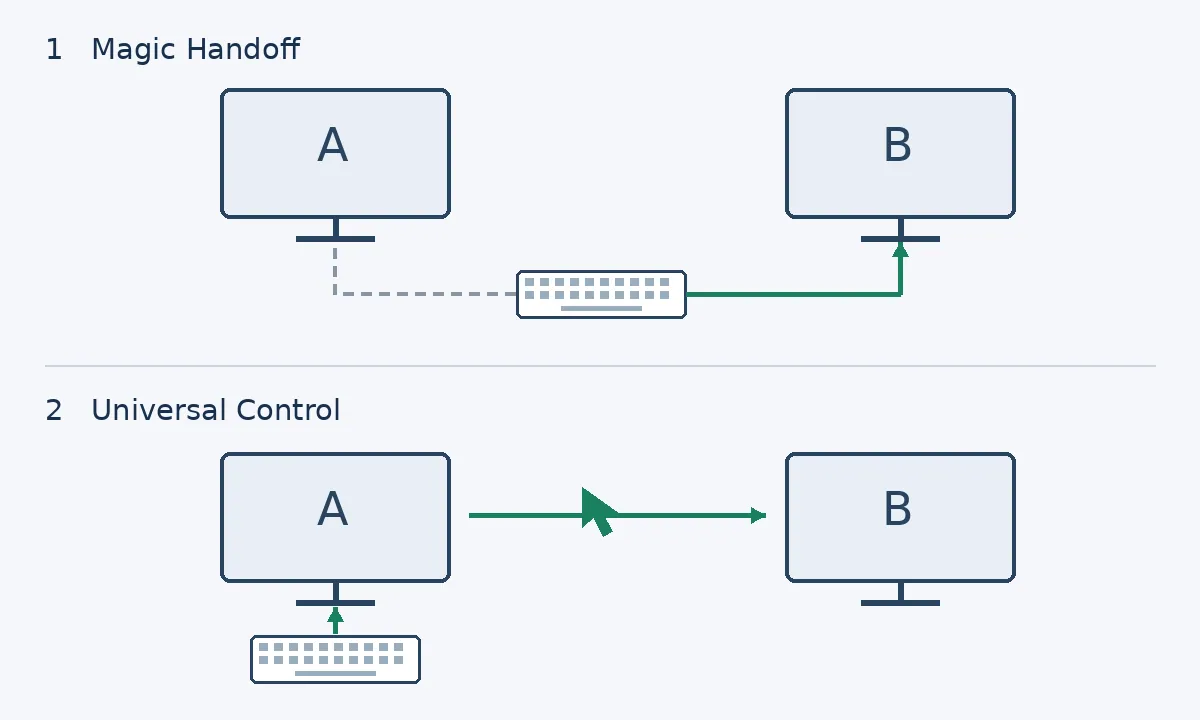
Original connection diagram, not AirBuddy or macOS UI, a hardware test, or wiring instructions. 1: Magic Handoff transfers the compatible peripheral’s connection from A (dashed) to B (solid). 2: Universal Control keeps the input device connected to A while the pointer and input cross to B. Each has system, device, and authorization requirements. Arrows do not indicate transfer speed.
AirBuddy 3 requires macOS 14 or later and a Mac with Bluetooth Low Energy. Every Mac participating in Magic Handoff must run 3. When the vendor rebuilt the connection protocol, it made clear that the new one is not interoperable with 2. If one Mac can upgrade and the other must stay on an older system or on AirBuddy 2, upgrading only one is not enough. On managed computers, obtain approval for installation, Bluetooth, and local communication first. If network or security policy does not allow it, retain approved separate input devices rather than altering the firewall or bypassing management restrictions.
Check the round trip and whether you can keep working after a failure
Use a blank document for an ordinary A→B→A input task and verify keystrokes, pointer movement, and the target window on both Macs. Do not test in a password field, on a payment page, or in a window that sends content out. Include everyday interruptions such as sleep, wake, or a temporarily unavailable destination. Can you tell when it fails? Which Mac is the peripheral connected to after recovery? Can you keep working with a built-in keyboard or trackpad or a wired backup? Record recovery time; the vendor’s description of improved reliability is not a promise against interruption.
The listed price of one AirBuddy 3 license is US$20, and upgrade offers depend on prior purchases. Before buying, confirm that every participating Mac has an applicable license, how many activations it allows, and the local total with taxes. Do not automatically multiply two Macs into two licenses or assume an older purchase grants access to version 3. If using Setapp, consider your existing subscription and device entitlements rather than treating it as a free standalone license.
Saving a few menu steps may not justify maintaining another utility. Manually note how often you switch during normal work, then include the additional cost of initial setup, recovery, and spare input devices. For example, if setup and familiarization take 15 minutes and you save only 30 seconds each workday after accounting for recovery, it takes 30 workdays to earn back that time, before the license cost. That is a budgeting method, not an AirBuddy test result. If you switch seldom, separate input devices may suit you better.
AirBuddy 3 suits users who genuinely need to transfer a confirmed supported Magic peripheral back and forth, meet system and licensing conditions on both Macs, and find the round trip and recovery acceptable. If Universal Control already serves your side-by-side setup, or the versions, peripherals, or management approvals do not line up, there is no need to pay for Magic Handoff. Assess the battery interface and headset connection separately rather than letting them justify an unverified need to transfer input-device connections.
Content note:This article is based on publicly available information and is intended as a reference for evaluating tools. Features, pricing, and related policies may change at any time; please refer to the latest official information.
Original source:web.archive.org