Choosing a PDF tool through Apowersoft: check the old license before deciding on OCR
ApowerPDF has become LightPDF, but an account is not the same as an old license entitlement. Use a self-made equipment list to check the text layer, recognition and editable deliverable, avoiding both a duplicate license purchase and unnecessary OCR of already editable files.
When looking for a PDF editor on Apowersoft’s website, do not treat downloading a new version and buying another license as the same step. ApowerPDF, PDF Converter and PDF Compressor have moved under the LightPDF brand; the official upgrade announcement explicitly says the accounts are not interoperable. Checking entitlements may save existing license holders more than comparing feature tables. For new users, whether OCR is needed depends on whether their PDF contains text or images.
Check the exact old product and purchase date
The upgrade announcement distinguishes two categories of users who purchased before October 2023. ApowerPDF lifetime holders, including the lifetime ApowerPDF plus PDF Converter bundle, can contact official support about transferring their license and upgrading. For standalone PDF Compressor or PDF Converter lifetime holders, it describes a two-year LightPDF license arrangement to confirm with support. Do not read the latter as automatically receiving a new lifetime entitlement, or assume orders after the cutoff qualify too. Check the original order’s exact product, date and license type, then have official support confirm the applicable arrangement and usage scope before deciding whether to buy anything extra.
The announcement does not say that all old software stopped working immediately. It says maintenance and updates would move to LightPDF and some legacy functions might be unstable. An old program still opening does not establish that keeping it long term is the cheapest choice. A new account rejecting an old login does not establish that the old entitlement is void either. License verification is separate from reliable document handling, which needs its own check. Do not send full business documents to support just to ask about entitlement.
One checklist, two PDFs, different acceptance checks
Create a meeting-room equipment list with no personal information: identifier 0007, quantity 10, a checkbox and a note. Keep two versions: a text PDF exported directly from an editor, and an image-only scan of the same page. Apowersoft’s older support documentation explains that scanned text may be only an image and need OCR before editing. First select, search for and copy the identifier in the text version, then change one note. If the original text layer already works, there is no reason to run recognition first merely to chase an AI feature.
LightPDF’s desktop OCR guide describes selecting pages and recognition languages, then opening an editable new document after recognition. It also describes extracting to Word or TXT. This is a documented feature path, not a guarantee that your list’s rows, columns, leading zeros or checkboxes remain correct. Preserve the original and save the recognized output separately as a derivative; do not overwrite the source just because the result opens or a search succeeds.
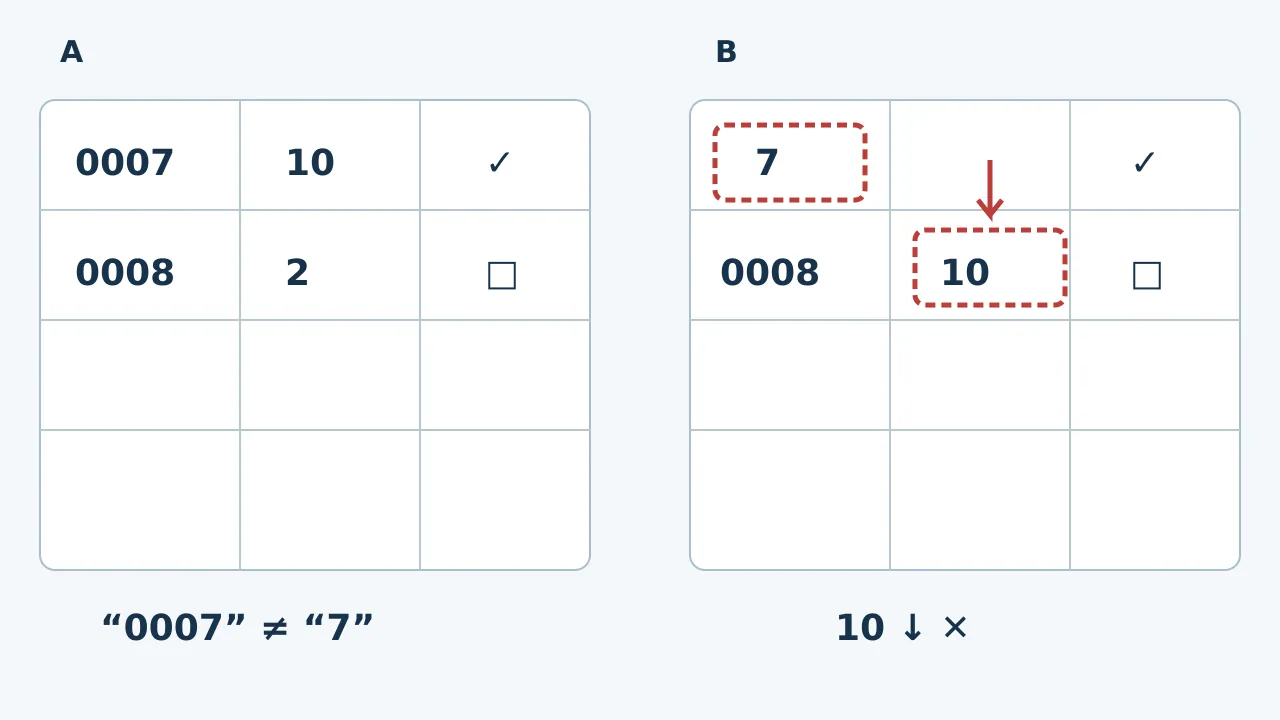
Original hypothetical checklist, not LightPDF’s interface or an actual recognition result. The preserved reference is on the left; two errors on the right illustrate the checks: 0007 loses its leading zeros and quantity 10 moves to the next row. Even when text can be found, identifiers and row associations still need checking.
Suppose an OCR result changes 0007 to 7 but still allows it to be found, or moves quantity 10 into the next row. The first loses the identifier’s format; the second changes its row association. Either can undermine later reconciliation. These are hypothetical failures, not known LightPDF errors. Copy the identifier out of the new file and check leading zeros and character order, then compare quantities, notes and checkbox states row by row. Searchability, editability and correct content are three separate questions, not one checkbox.
If the deliverable is only for finding old information, preserve the original and test retrieval in the chosen derivative. Rewriting content or rearranging tables requires actually checking editing and layout in the target format. Do not turn the desktop guide’s “editable new document” into a promise of an archival-quality searchable PDF that preserves the original image. For a file with only a few short passages, manual transcription and checking may be faster. An approved existing editor may suffice when a usable text layer is already present.
Before paying, compare the total time to deliver using the same self-made samples: entitlement confirmation, recognition setup, corrections and reformatting, not just OCR waiting time. Confirm that the quotation covers your platform, OCR features and license scope. If your organization prohibits uploads, desktop installation alone does not establish offline processing. Verify the processing route and approved scope; if unclear, retain an already approved workflow. Moving to LightPDF has an adoption case only when entitlement is clear, the required output passes review, and the total cost is a better fit.
Content note:This article is based on publicly available information and is intended as a reference for evaluating tools. Features, pricing, and related policies may change at any time; please refer to the latest official information.
Original source:www.apowersoft.com