ArtSpace.ai: reusing a seed doesn’t lock the shapes in place
Use a hand-drawn square and circle to decide between exploring variations and keeping editable layers.
A contains the blue square and teal circle. B1 adds an orange dot and keeps both; B2 loses the circle, shown dashed.
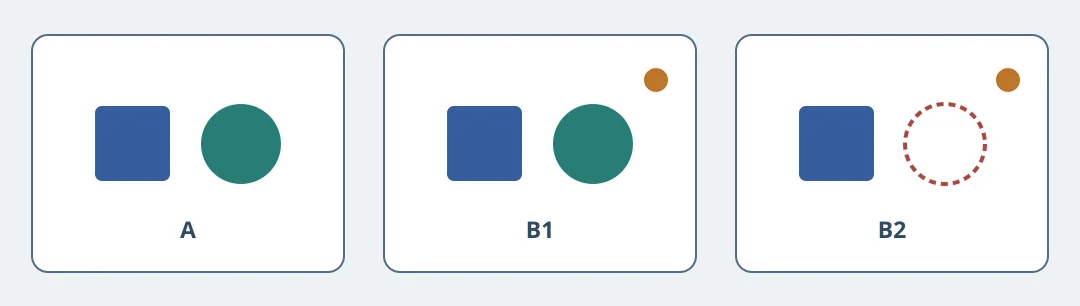
Figure 1. ArtSpace.ai’s 2024 tutorial shows recovering the seed and settings from History for a small variation. Its example also shows a new detail displacing an existing object. That makes seed reuse a candidate for sketches that needn’t match exactly, not a substitute for locked layers.
Define two elements that must survive a small change
On paper, put a blue square left and a teal circle right; add only an orange dot in the corner. Use the same assumed canvas and composition, then check the original elements’ position, size and colour. The new dot is welcome; a missing or resized circle is not. If your selected model or plan cannot recover equivalent settings and the seed, don’t treat the comparison as repeatable.
Count review, retries and fixes as well as generation. Consider ArtSpace.ai only if accepted variations save time while exploring composition. For exact positions, add the dot in SVG or a separate layer. This uses hand-drawn geometric fixtures only, without a service call or borrowed artwork.
Content note:This article is based on publicly available information and is intended as a reference for evaluating tools. Features, pricing, and related policies may change at any time; please refer to the latest official information.
Original source:blog.artspace.ai