Is AutoCaption worth using for vertical videos? Check the missing “not” and the hidden label
Use one self-made clip to compare AutoCaption with your current editor. Verify negation and timing before checking whether captions hide information on screen. Decide by the time it takes to deliver a corrected cut.
If your team repeatedly makes similar vertical clips and spends most of its caption time typing lines and recreating styles, AutoCaption is worth evaluating with one short clip. Switching might not save time if your editor already has reusable caption styles or if key visual information sits near the bottom in every clip. The question is how long it takes to produce captions that make sense with sound off and keep the picture readable, not how many effects there are.
Check the words first, then their position
AutoCaption’s 2023 launch page explicitly targets 9:16 videos and describes automatic captions, customizable dynamic styles, animated emoji and templates. What helps with recurring production is starting with a generated draft, applying a consistent style and then correcting it. Automatic recognition or animated emphasis does not guarantee accuracy. The announcement is not an independent test.
Record a fictional announcement lasting just over ten seconds. Put “Pilot only” in the lower right, and say “Sign-up will not open before Friday.” Write the original line on your checklist. First, check only the words and timing: “not” must remain visible together with “open for sign-up” in the same readable segment. If an earlier frame displays “open for sign-up” and the negation arrives later, a viewer watching on mute initially reads the opposite meaning. Then check the picture. Highlighting “Friday” can help signal the time but must not overpower the negation, and a caption placed in the lower right must not cover “Pilot only.” Both checks must pass.
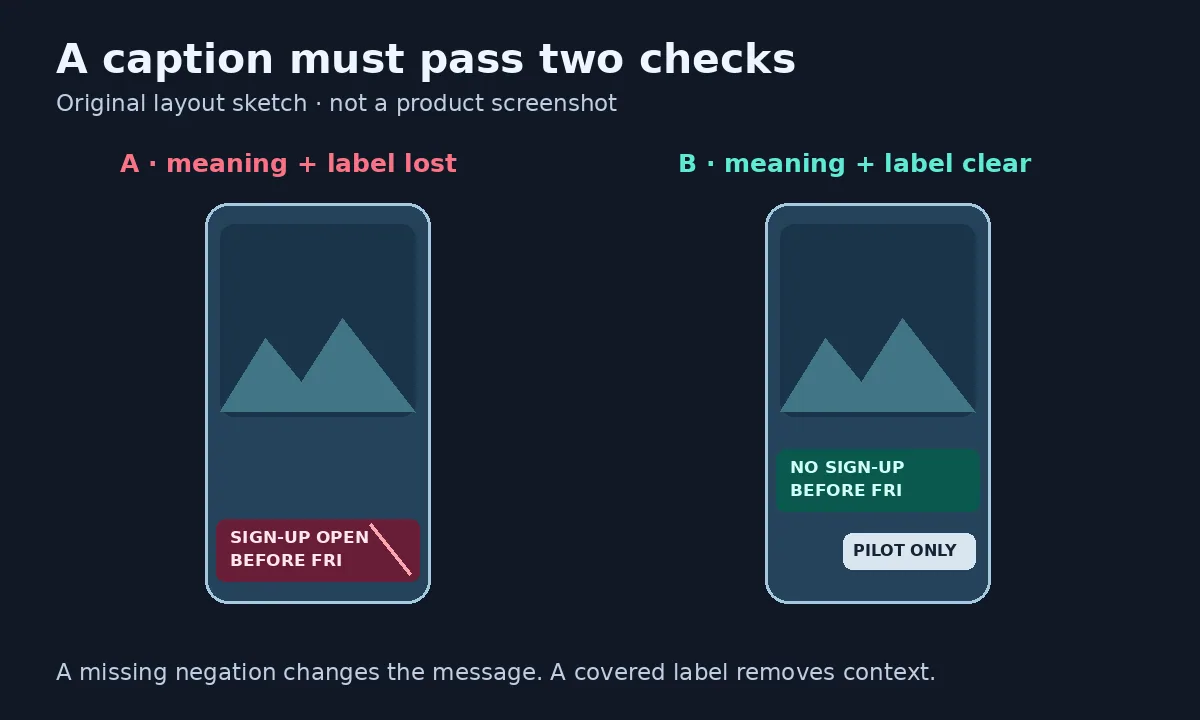
Two layouts for one fictional vertical video. The “no” determines the meaning, and the pilot-only label in the lower right must also remain readable. This is not an AutoCaption interface or a test result.
Compare time to delivery using the same clip
Use the same self-made clip and checkpoints in your existing editor and the candidate tool. Track time spent generating or typing, correcting words, adjusting when they appear, resolving overlaps and reviewing. Watch once at the intended viewing size with the sound off, then turn it on and check alignment with speech. Treat reversed meaning or hidden key information as must-fix issues, not as color preferences. The evaluation needs no real account connections, messages or unauthorized recordings.
Consider paying only if multiple clips share one layout and the corrected template genuinely reduces work on the next one. Check whether the relevant template and export are included in the plan you are considering, and count any extra conversion or rework. If the template has to be moved for every clip, or there is only one notice that is quick to caption by hand, keep your current editor. Animated emoji are optional. Accurate wording, intact timing and a readable picture are not.
Content note:This article is based on publicly available information and is intended as a reference for evaluating tools. Features, pricing, and related policies may change at any time; please refer to the latest official information.
Original source:www.producthunt.com