Colossyan buying guide: When the script changes, check the old number still on screen
Check script and on-screen text separately on a paper scene card to distinguish a synchronized change from a one-layer edit.
To compare tools that organize multilingual instructions into scenes, consider Colossyan. Its official article, marked updated December 16, 2025, describes mapping slides or script sections to scenes and lists script and on-screen text as separate content. That supports reviewing each, not assuming one change updates the other or that conflicts are found automatically. This example uses only paper text and geometry.
Draw a fictional two-column card for scene S2: the left script says “stack the circle drawing in two layers” and the right visual label says “2 layers.” After approval to change to three, candidate A has 3 in both columns; candidate B's script has 3 but its label still reads 2. Have a reader see only the right column first, write down the number, then compare it with the approved card and left column. B fails even if its script reads smoothly. If the right column is covered, mark “visual unverified,” not synchronized by default. A shared scene number cannot replace two readable checks.
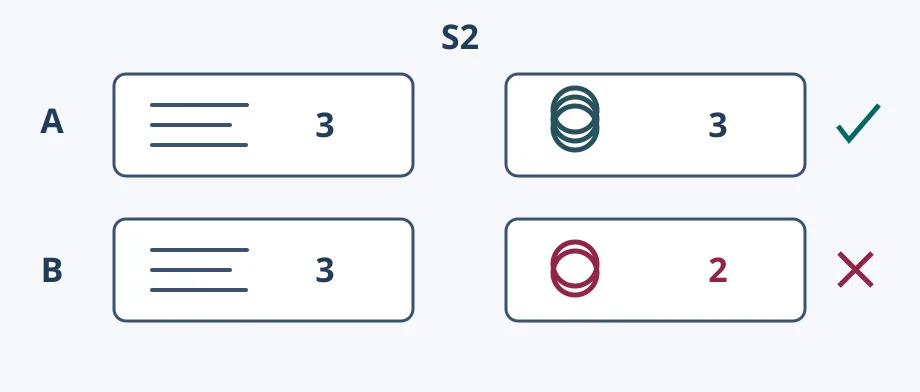
For one static card, a local two-column draft and a second read suffice. If maintaining recurring multilingual scenes, compare whether the script and visible text for the same scene can be reviewed separately, and count time to find missed changes in each language. Verifying one layer does not complete the change. No importing, generating, voicing, rendering, uploading, or real people.
Content note:This article is based on publicly available information and is intended as a reference for evaluating tools. Features, pricing, and related policies may change at any time; please refer to the latest official information.
Original source:www.colossyan.com