Should you prototype in Figma Make? Decide whether reviewers need behavior or the handoff needs layers
Use a pilot with a failure path to decide whether to adopt Figma Make. Interactive embeds and copied layers solve different problems. Before handing off, check who can view the original and what your design system can reuse.
If your team is still debating how an interaction should work, Figma Make is worth trying for one interaction people can actually use. If you just need to confirm already agreed screen transitions, staying in Figma Design is simpler. Make can generate interactive prototypes from prompts and take an existing design as a starting point. It puts unsettled behavior in front of reviewers, but once they approve it, you still need to decide who owns the runnable version and who maintains the file for design and engineering.
Use one failure path to decide whether to adopt Make
Say you’re redesigning a membership upgrade. Rather than building the entire admin area, ask reviewers to try it twice: once with a successful upgrade and once with a simulated payment failure followed by a retry. Use synthetic data and label the failure as simulated. Watch whether people can find the retry option without guidance and tell whether their previous selection was preserved. The real decision is whether to preserve that selection and how to explain it. If you only need to check which screen a button opens, use prototype connections in Figma Design. Make is more likely to justify a separate prototype if your team regularly needs to show inputs, state changes, and error recovery together.
Keep the review interactive and the handoff editable
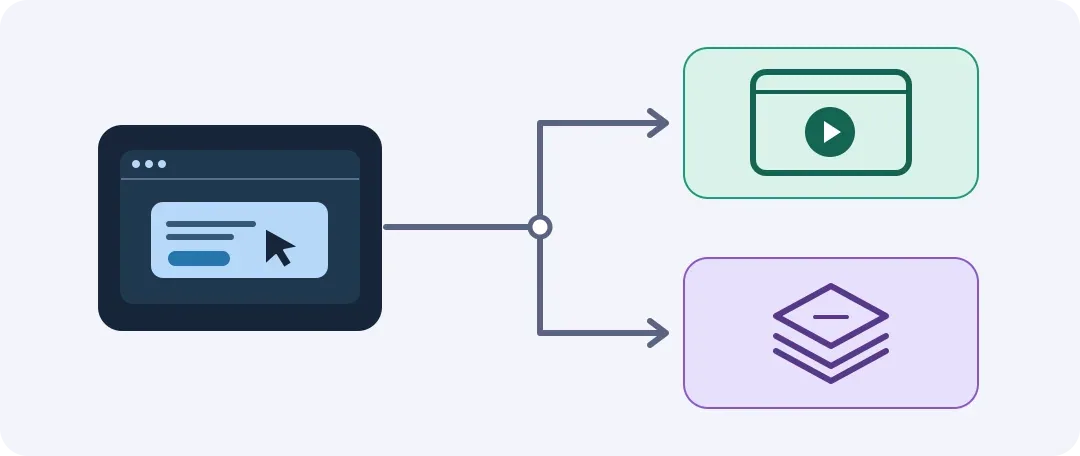
Figma’s announcement describes how Make prototypes can be embedded and played in Figma Design, FigJam, or Figma Slides. Embed the demo in your existing review file and have an actual reviewer open it using their own account. Figma’s help center says viewers need access to the source Make file. Opening the review file does not guarantee that the demo inside will open. For an internal review, fix file access first rather than publishing to the web just to make the demo accessible.
If a designer needs to keep working on the layout, Figma’s Copy design takes the interface currently shown in Make into Figma Design as editable layers. The help center explains that those layers do not carry prototype interactions, do not stay linked to the original Make file, and do not automatically become design-system components. To rehearse the upgrade handoff, copy the success and failure states separately and ask the receiving designer which buttons, text styles, and components can be reused directly. Count the time it takes to replace elements with team components and rebuild interactions.
Decide where changes belong before rolling it out
Set two acceptance criteria: a reviewer can get through the failure path without the facilitator taking over, and the person receiving the handoff can find both states and the corresponding behavior notes in the design file. During review, use the Make demo to show behavior. Once approved, record the accepted screens and states in the design file and write the retry rules there. If only the first criterion is met, keep Make for exploration. If both pass and cleaning the copied layers takes less time than rebuilding them, consider using Make in regular handoffs.
Content note:This article is based on publicly available information and is intended as a reference for evaluating tools. Features, pricing, and related policies may change at any time; please refer to the latest official information.
Original source:www.figma.com